
The Data Landscape graph
Every connection, dataset and pipeline on one map.
Home is the Data Landscape graph, where you land after signing in. From here you create connections, pipelines and datasets and follow their runs. Each card is a node, and lines run left to right in the direction data flows.
Nodes and lines
| Node | What it is | Click | Double-click |
|---|---|---|---|
| Object store | A bucket registered in Settings. The default store is labeled Beetl storage. | Opens Register data set on that store | |
| Postgres source | A database added with New connection, read in place | Opens Register data set on that source | |
| Connection | An integration or webhook connection | Opens the details pane | Opens its setup, where available |
| File sets | One card for all your File Sets | Opens the File sets dialog | |
| Data set | Any dataset. Registered and external ones are labeled. | Opens the details pane | Opens Query with SELECT * … LIMIT 100 |
| Pipeline | A pipeline, with its source and stage counts | Opens the details pane | Opens the editor |
A line goes into a dataset from whatever writes it (a connection, the File sets card or a pipeline) or from the store or source it was registered from, and out of a dataset to each pipeline that reads it. A dataset Beetl writes has no line to the store holding it; its details pane names the store. Click or hover over a node to highlight its lineage upstream and downstream.
Status markers
| Marker | On | Meaning |
|---|---|---|
| Running, with a spinner | Pipeline | The latest run is queued or running. |
| Spinner | Connection | A sync is running or waiting to start. |
| Warning triangle | Pipeline or connection | The pipeline's last run, or a sync's latest run, failed. |
| Warning triangle | Data set | Nothing has been written yet. Hover to see the status, usually Pending. |
| Check mark | Pipeline | Deployed, with no unpublished changes. |
| Dot | Pipeline | The Working version has changes that are not deployed. |
| Status dot | Connection | Green when active, grey when paused or waiting for authentication. Hover to see which. |
The details pane
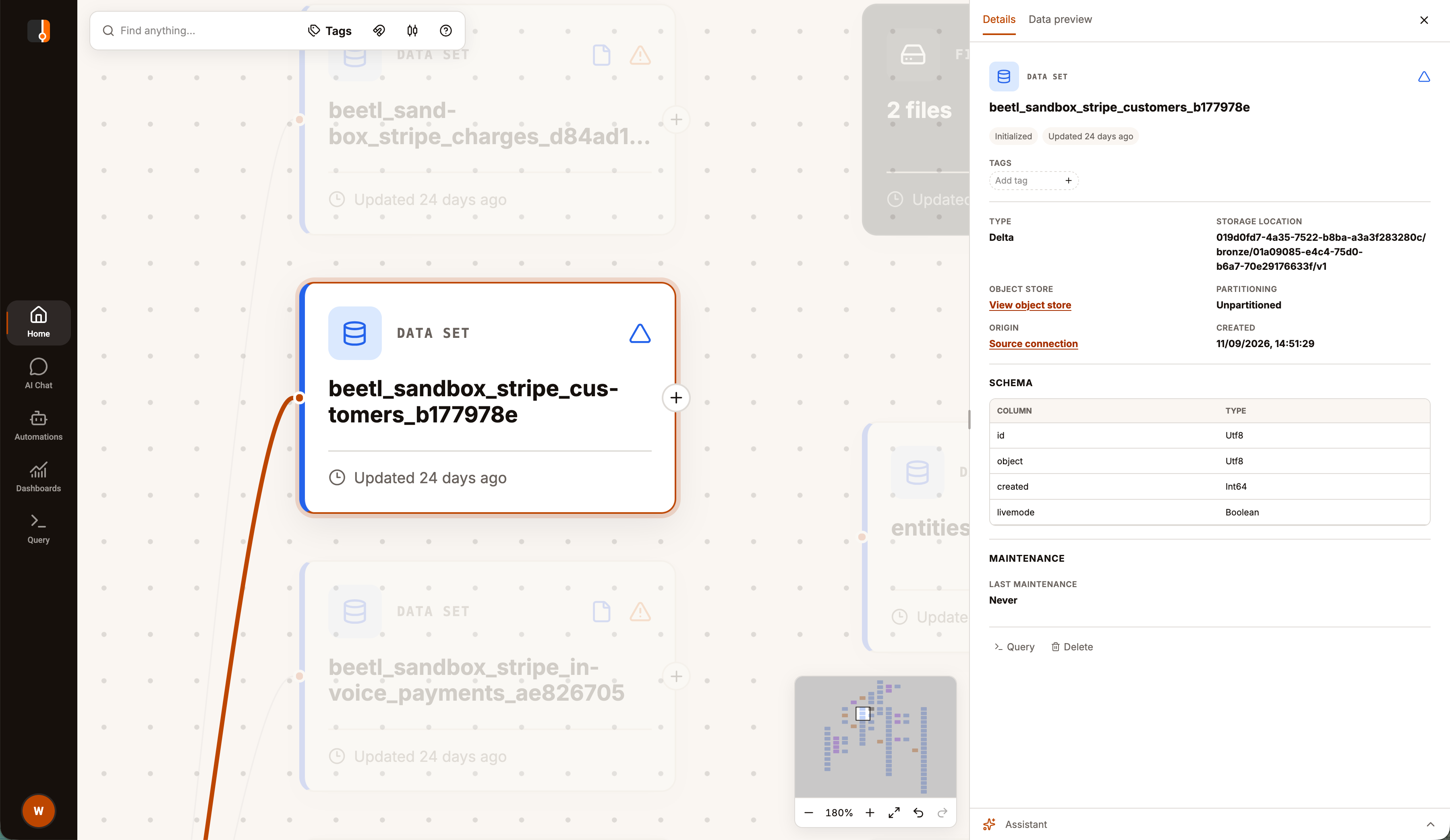
Click a connection, dataset or pipeline to open its details pane on the right. Drag its left edge to resize it, and close it with × or by clicking empty canvas.
| Node | Tabs |
|---|---|
| Data set | Details: status, type, storage location, object store, partitioning, origin, schema and tags. Data preview: the first 30 rows, with Open in Query. |
| Pipeline | Details: versions, deployment, sources, required run variables and the latest run. Runs. |
| Connection | Details: type, authentication, and each sync with its latest run. Runs and Logs. |
You can filter runs by time range, and a connection's runs also by sync. On the Details tab you add and remove tags, and the buttons at the bottom repeat the node's right-click actions. See Runs.
Right-click menus
Right-click empty canvas to create something:
| Item | What it does |
|---|---|
| New pipeline | Creates an untitled pipeline and opens the editor. |
| New connection | Opens setup for an integration, a webhook or a Postgres source. See Connect your data. |
| Register data set | Registers files in an object store or a Postgres table. See Registered datasets. |
| Add zone | Adds a zone where you clicked. |
Right-click a node to act on it:
| Node | Actions |
|---|---|
| Pipeline | Open editor, Run pipeline (deployed and enabled only), Disable or Enable, Delete |
| Connection | Configure, Pause or Resume, Delete |
| Data set | Query (once data has been written), Delete |
| Object store | Browse object store |
| Postgres source | Register table, and Delete for a TenantAdmin |
| Zone | Delete zone |
| Several selected nodes | Delete all of them |
Every delete asks you to confirm. Deleting a connection keeps its datasets, and deleting a dataset keeps its data in storage. See Connection types, connections and syncs.
The + on a card
Click the + on a dataset card's right edge, enter a pipeline name and choose Create
pipeline. The pipeline appears on the canvas with that dataset as a source called source. On an
integration connection, the + lists the integration's streams and opens the sync dialog with
your choice filled in. See Integrations.
Search and tags
Find anything… at the top left dims every node whose name does not match. The Tags menu keeps only nodes carrying a tag you check. Only connections, datasets and pipelines take tags, so other nodes dim while a tag is checked.
Arrange the canvas
Drag across empty canvas to box-select, Cmd/Ctrl-click to add or remove a node, and nudge the selection with the arrow keys. Delete or Backspace deletes it once you confirm. In the toolbar, the magnet turns on Snap to grid, Tidy layout arranges cards by dependency, and ? lists these shortcuts. The bottom right holds a clickable minimap, zoom, fit to view, and undo and redo for navigation.
A zone is a colored background for grouping nodes. Double-click its label to rename it, select it to resize it or change its color, and drag it by its border. Moving a zone leaves its nodes behind, so box-select both to move them together. Tidy layout resizes zones to fit their nodes.
Dropping files onto the canvas turns each file into its own File Set.
The layout is saved in your browser
Node positions, zones and the snap setting are stored in this browser, per tenant. Other users, and you on another device, see their own arrangement, and clearing site data resets it.
The assistant on Home
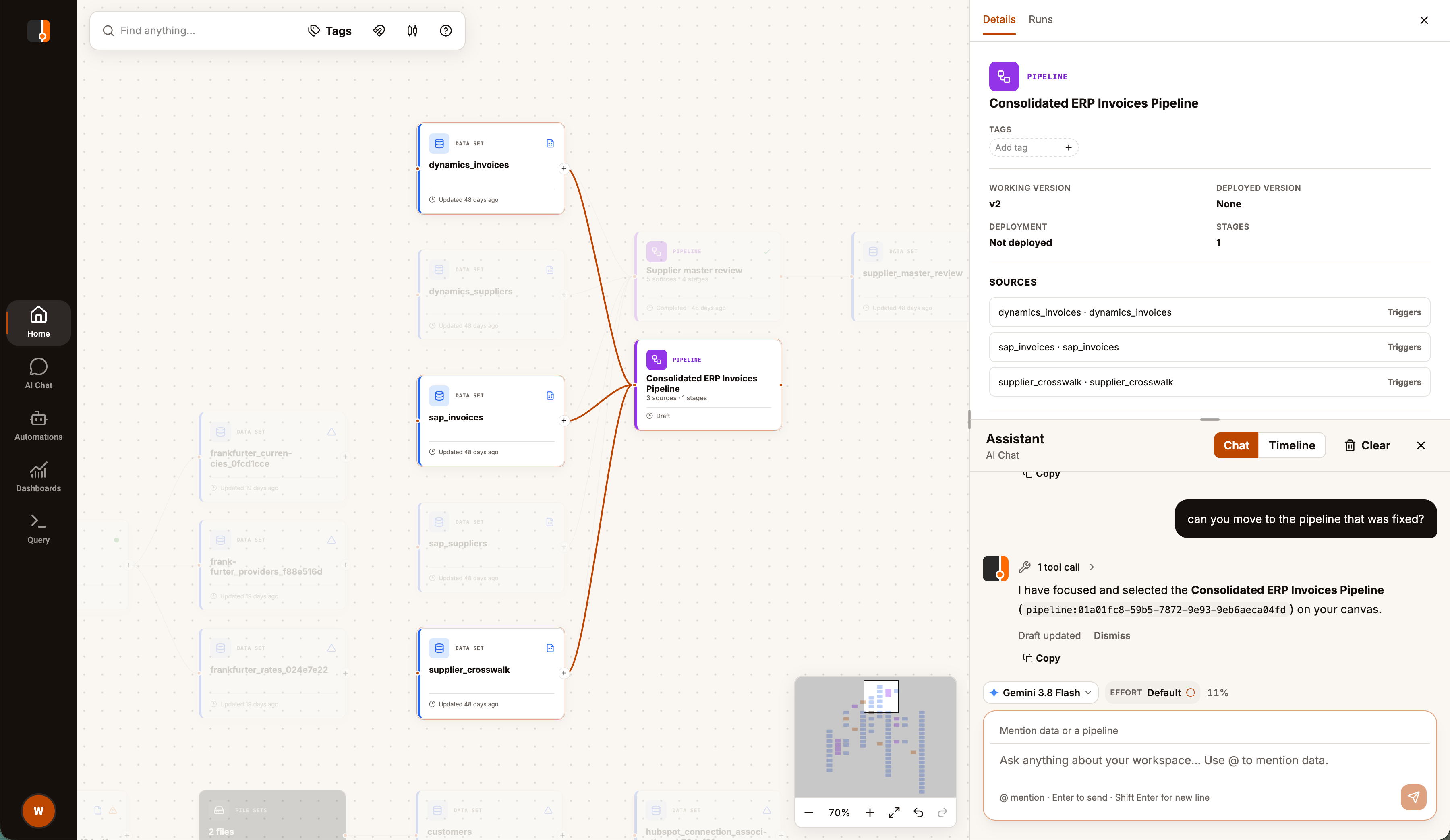
Open Assistant from the right edge of the window. On Home it sits below the details pane, with a divider you can drag.
The assistant reads the graph and can arrange it: move nodes, add or resize zones, set the search and tag filter, and select a node. These edits never change the connections, datasets or pipelines themselves. Its reply ends with Draft updated, where Dismiss undoes that turn. See The agent trust boundary.
Pages not in the sidebar
These three list pages have no sidebar entry. Open them by address:
| Page | Address | Also reached from |
|---|---|---|
| Connections | /web/connections | Closing a connection setup opened as a full page |
| Data Catalog | /web/data-sets | |
| Pipelines | /web/pipelines | The Pipelines link in the full-page pipeline editor |
Related
Last updated on