
File Sets
Folders of CSV, NDJSON or Parquet files, imported into one dataset.
A File Set is a named group of uploaded files with the same columns. Beetl imports the files in it into one Bronze dataset and imports again whenever the files change. Use it for exports, one-off loads and data from systems Beetl cannot reach directly.
Formats and size
The first file you add fixes the set's format.
| Extension | Imported as |
|---|---|
.csv | CSV, with a choice of delimiter and header row |
.jsonl, .ndjson | Newline-delimited JSON |
.parquet | Parquet |
Each file can be up to 5 GiB, and empty files are refused. Once a set has a format, a file with a
different extension is refused. A set whose first file has any other extension, plain .json
included, keeps its files without importing them. It shows as not processable and never gets a
dataset, so start a new set for your CSV, NDJSON or Parquet files.
Create a File Set
On Home, click the File sets card to open the File sets dialog.
Choose Upload, or drop files into the dialog. Each file becomes its own File Set, named after the file without its extension. To group several files in one set, choose New file set, name it, and drop the files onto its row.
Beetl creates a Pending dataset named after the set, links it, and starts the import. If the name
is taken, it adds a number, such as orders_2.
When the set shows a check mark, the dataset is Initialized and ready to query by name.
You can also drop files straight onto the Home canvas. Each one becomes a File Set at the top level.
Managing files
Expand a set's row to download or remove its files and to see which dataset it feeds. Click the dataset name to jump to it on Home.
To add files, drop them onto the set's row. A file with the same name as one already in the set replaces it after you confirm. A file whose content is identical to one already in the set is ignored.
Folders are prefixes in the set name. Create one with New folder, and move a set by dragging its row onto a folder or a breadcrumb. Empty folders disappear. Renaming or moving a set does not rename its dataset, and deleting a set keeps its dataset.
Processing options
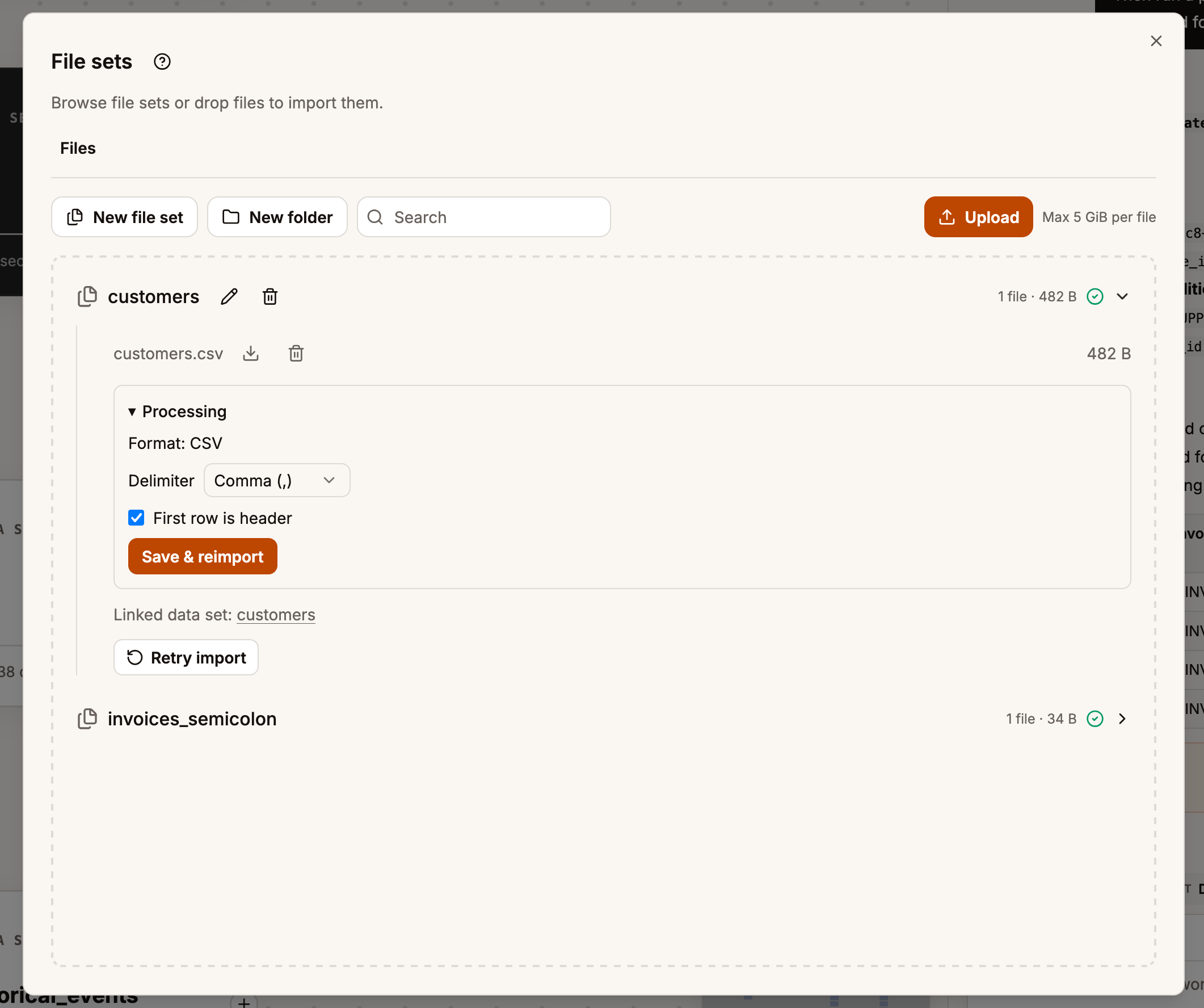
For CSV sets, the Processing section of the row sets the delimiter (comma, semicolon, tab or pipe) and whether the first row is a header. New CSV sets start with comma and a header row. Choose Save & reimport to apply a change.
Imports
Every import rebuilds the dataset from all the files currently in the set. An import starts when you add, replace or remove a file, when you save processing options, and when you choose Retry import.
| Icon | Import status |
|---|---|
| Spinner | Pending or running |
| Check mark | Succeeded |
| Triangle | Failed. Hover over it to read the error. |
| Question mark | Not processable |
An import that fails for a temporary reason is retried automatically. If a message says the import was not scheduled, use Retry import on the set's row.
When the schema changes
If the files inside one set do not share the same columns, the import fails and the dataset keeps its previous contents. Fix or remove the odd file and the next import runs.
If the whole set no longer matches the dataset, for example because a monthly export gained a column, Beetl deletes the dataset and creates a new one with a new ID. It keeps the name if it can, or adds a number. The dialog asks you to confirm first. Pipelines refer to their sources by ID, so every pipeline that read the old dataset fails until you point it at the new one. See Datasets and tiers.
Related
Last updated on